
How to Use Night Lua Generator
A complete step-by-step guide to searching Steam games, entering AppIDs, generating Lua files, downloading ZIPs and using Night Injection.
Introduction & Quick Start
Search for a game or enter its Steam AppID to generate and download available Lua files. Not every game has an available package.
- Open Generator in a modern browser with JavaScript, downloads and an internet connection enabled.
- Search by game name or expand Advanced → Use AppID instead.
- Confirm the AppID, then select Generate Files.
- When generation finishes, select Download ZIP and open the ZIP.
No website account, payment or desktop application is required to search, generate or download. Night Injection is the separate Windows companion for importing files into a local Steam installation.
Searching for Games
- Open the Generator and focus Search for a game.
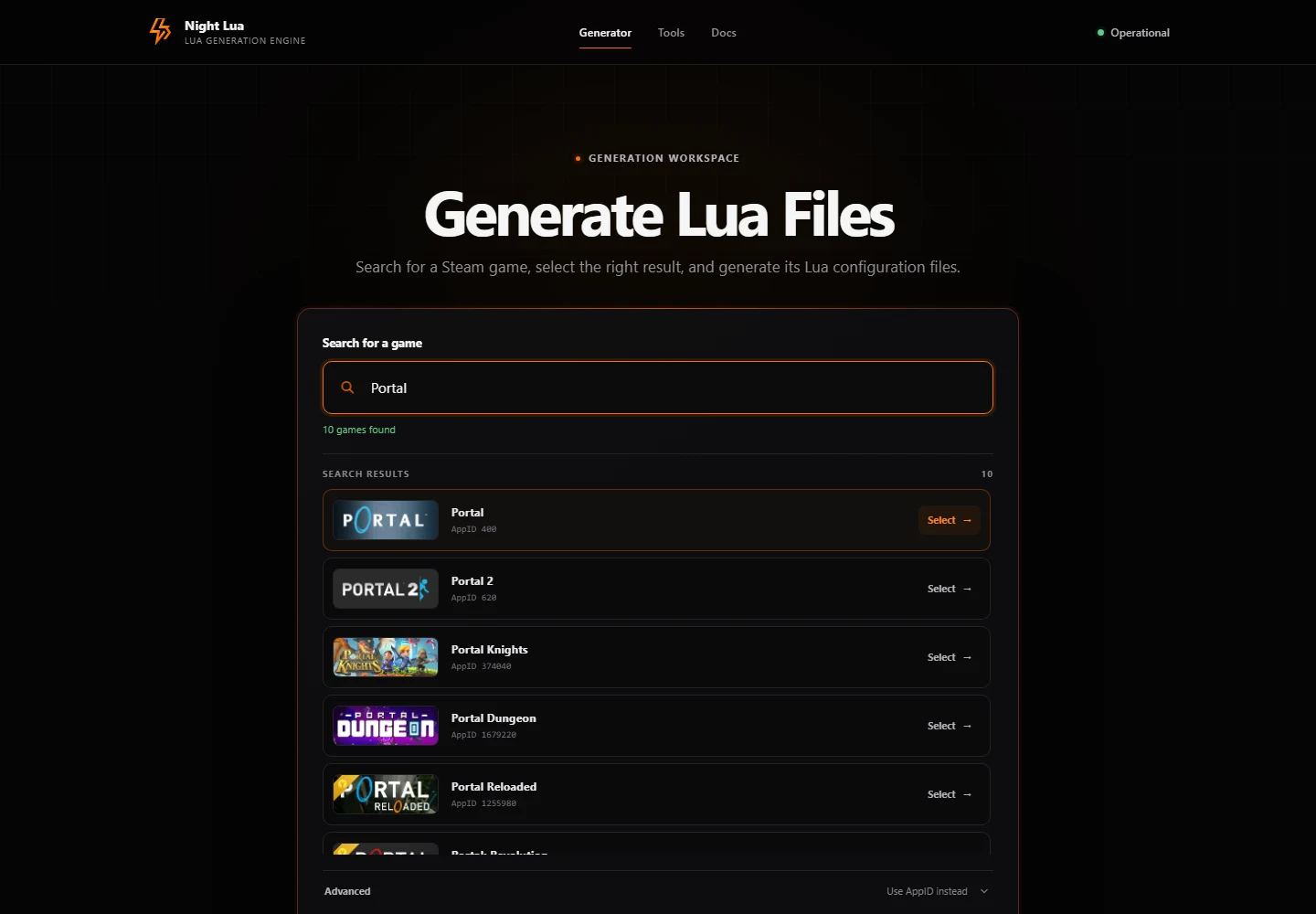
- Enter at least two characters of the game name, select the correct result and check its AppID. You can use the arrow keys and Enter to select a result.
- Wait for the search status to show the available results. A missing cover does not invalidate a result.
- Check the game name and numeric AppID. Related editions can have similar names.
- Select the correct result with the mouse, or use the arrow keys and Enter.
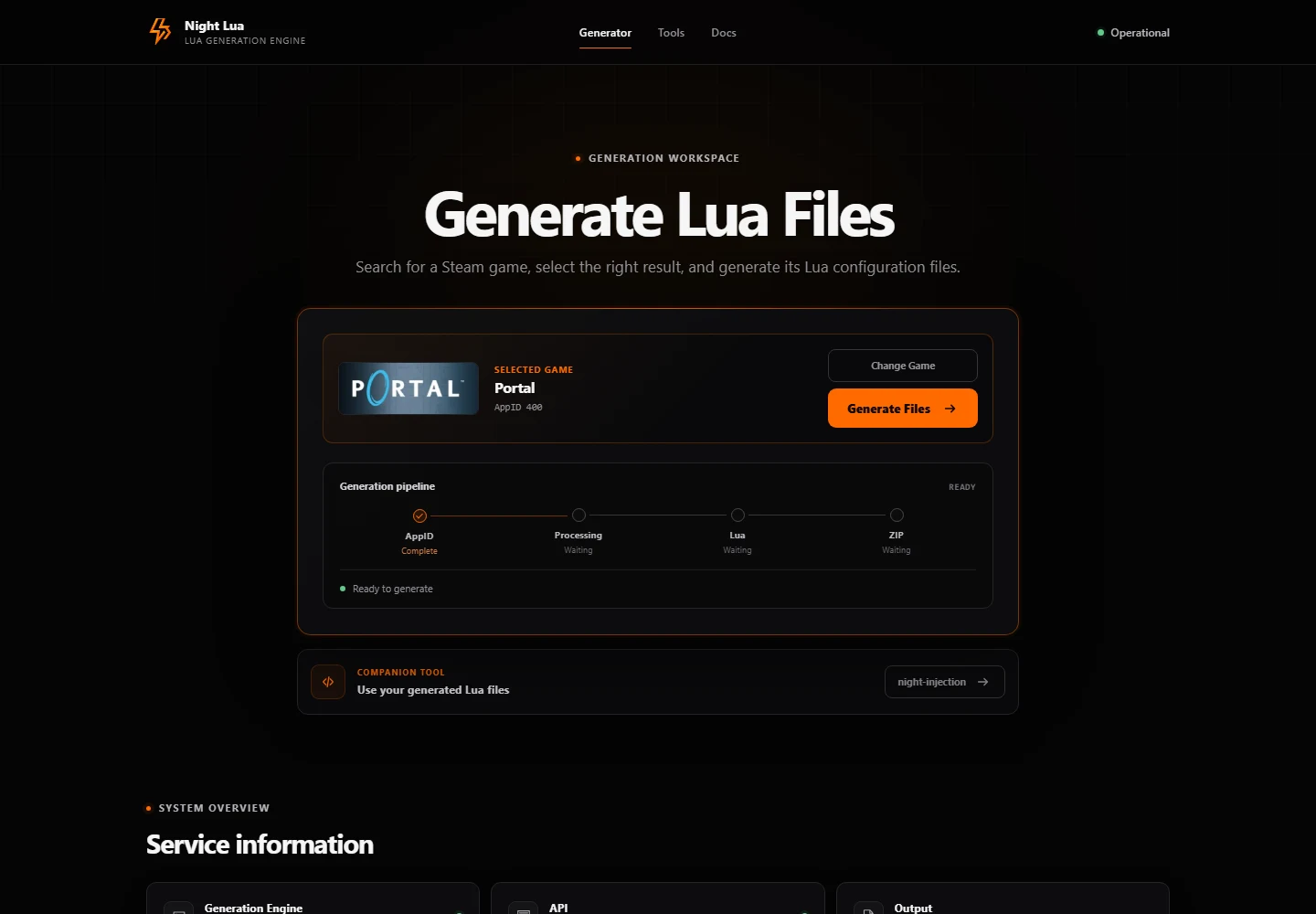
- The selected card shows the name and AppID. Use Change Game if it is the wrong title.
Search uses the Steam Store search service. It is a convenience, not a complete catalogue of every DLC, demo or tool. If no result appears, use the Steam AppID guide.
Using Steam AppID Mode
An AppID is Steam’s numeric identifier for an application. It differs from the title, a depot ID and a community profile ID. For example, the Store URL https://store.steampowered.com/app/620/Portal_2/ contains AppID 620.
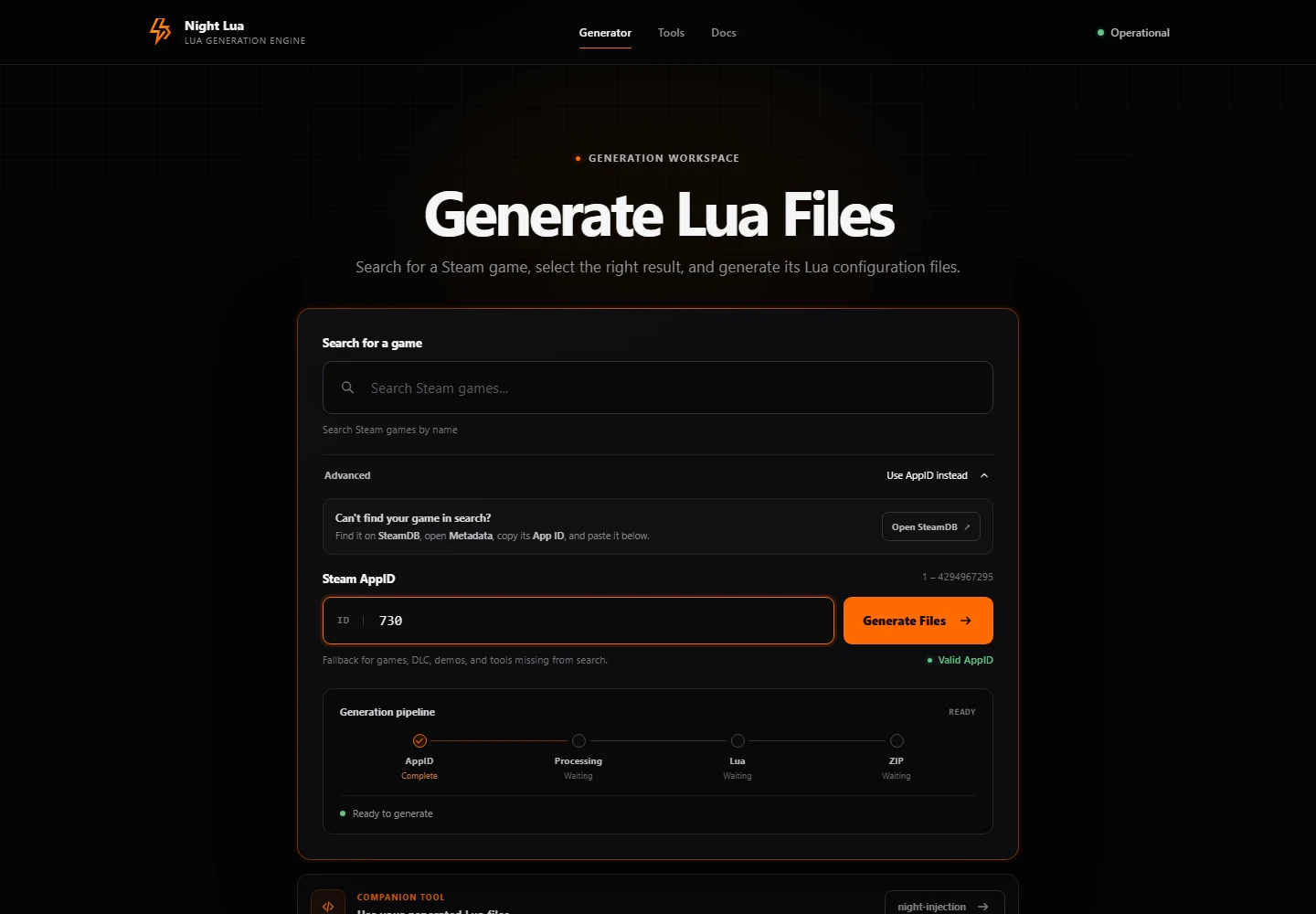
- Expand Advanced → Use AppID instead.
- Copy the AppID from the Store URL or SteamDB Metadata.
- Paste only the number into Steam AppID.
- Check that the feedback says Valid AppID and then select Generate Files.
Accepted IDs are integers from 1 through 4294967295 without leading zeros. Spaces around pasted input are trimmed. The feedback checks numeric format; it does not prove the game exists or that sources support it. Read the complete AppID guide for more examples.
Generating Files & Reading Progress
Select Generate Files and wait for Generation Complete. If generation fails, check the AppID and the displayed error before trying again.
The External Files notice links to separate game-specific downloads. They are not installed automatically.
A Real Generated Package
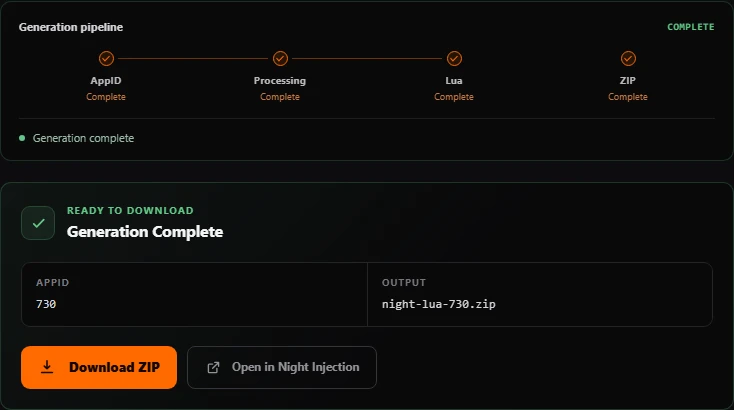
Example of Generation Complete with Download ZIP. File availability varies by game and over time.
Downloading & Inspecting the ZIP
- Select Download ZIP when Generation Complete appears.
- Your browser starts a download named
night-lua-<AppID>.zip. Its save location follows your browser’s settings. - Open the ZIP in your archive viewer before copying files elsewhere.
- Check that the Lua configuration belongs to the intended AppID. Manifests are present only when a supported source provides them.
Inspect the ZIP before use. It contains lua/ and stplug-in/ folders and may include depotcache/. File names and available manifests vary by game.
Download Started means the browser was asked to save the file. It cannot confirm that the operating system finished writing it. Check your browser’s download list for completion or a reported failure.
Delete the incomplete download and generate a new ZIP. If it still fails, report the displayed error.
Using Night Injection
Use Setup for website and Steam integrations. A portable download supports manual imports; extract it completely and keep its files together.
After generation, select Open in Night Injection, allow your browser to open the app, then review the files and confirm the import there.
If the app does not open, install or repair it using Setup. You can also download the ZIP and import it with Browse files.
Read Installation & Setup and Nght-Bridge documentation for the separate Steam integration.
Troubleshooting Common Problems
Game Not Found
Check spelling and try a shorter title. Search does not cover every application. Copy the correct AppID from the Store and use Advanced.
Invalid AppID
Use only a decimal number from 1 through 4294967295. Remove a pasted URL, minus sign, decimal point or leading zeros. Numeric validity alone does not establish source support.
Network Error / Service Unavailable
Check your connection and the AppID. Files may be unavailable for the selected game. Retry temporary failures later, and wait if asked before submitting again.
Generation Failed
Check your connection and the AppID. Files may be unavailable for the selected game. Retry temporary failures later, and wait if asked before submitting again.
ZIP Download Failed
Delete the incomplete download and generate a new ZIP. If it still fails, report the displayed error.
Missing Required Files
Read the External Files notice. The generator and bridge do not fetch those extra support files automatically. Available manifests depend on the selected source.
Night Injection Not Detected / Integration Failed
If the app does not open, install or repair it using Setup. You can also download the ZIP and import it with Browse files.
For persistent problems, use FAQ and the bug-reporting checklist.
For more help, ask the community on Discord.